Docker
- Updating container using docker-compose
- Setting up Apache Guacamole using Docker
- Troubleshooting Docker
- Paperless: ProtonMail Bridge
- Your URLS
- Cloudflare
- Updating a docker container running on QNAP using SSH
Updating container using docker-compose
- docker compose pull
- docker compose up -d --remove-orphans
- docker image prune
To list all containers:
docker ps -a
Setting up Apache Guacamole using Docker
Visit: https://github.com/boschkundendienst/guacamole-docker-compose
Follow instructions which in short are:
- git clone "https://github.com/boschkundendienst/guacamole-docker-compose.git"
- cd guacamole-docker-compose
- Edit docker-compose.yml to suite your environment
- ./prepare.sh
- docker compose up -d
If you want to add TOTP then do the following:
- In your docker-compose.yml file add
- Environment variable: GUACAMOLE_HOME=/config/guacamole
- Mount ./guacamole:/config/guacamole
- Create in your docker directory
- create the folllowing folders guacamole/extensions/
- wget https://downloads.apache.org/guacamole/1.6.0/binary/guacamole-auth-totp-1.6.0.tar.gz (or matching version to your guacamole install) and extract the guacamole-auth-totp-1.6.0.jar to the above extensions folder
After adding the above extension, restart the container.
Troubleshooting Docker
Check Environment Variables Inside the Container:
sudo docker exec -it container-name envReview Logs:
sudo docker logs container-namesudo docker-compose up -d && sudo docker-compose logs -f
Paperless: ProtonMail Bridge
Source code: shenxn/protonmail-bridge-docker: ProtonMail IMAP/SMTP Bridge Docker container (github.com)
Change to the Paperless docker directory
sudo docker compose down
sudo docker run --rm -it -v protonmail:/root shenxn/protonmail-bridge init
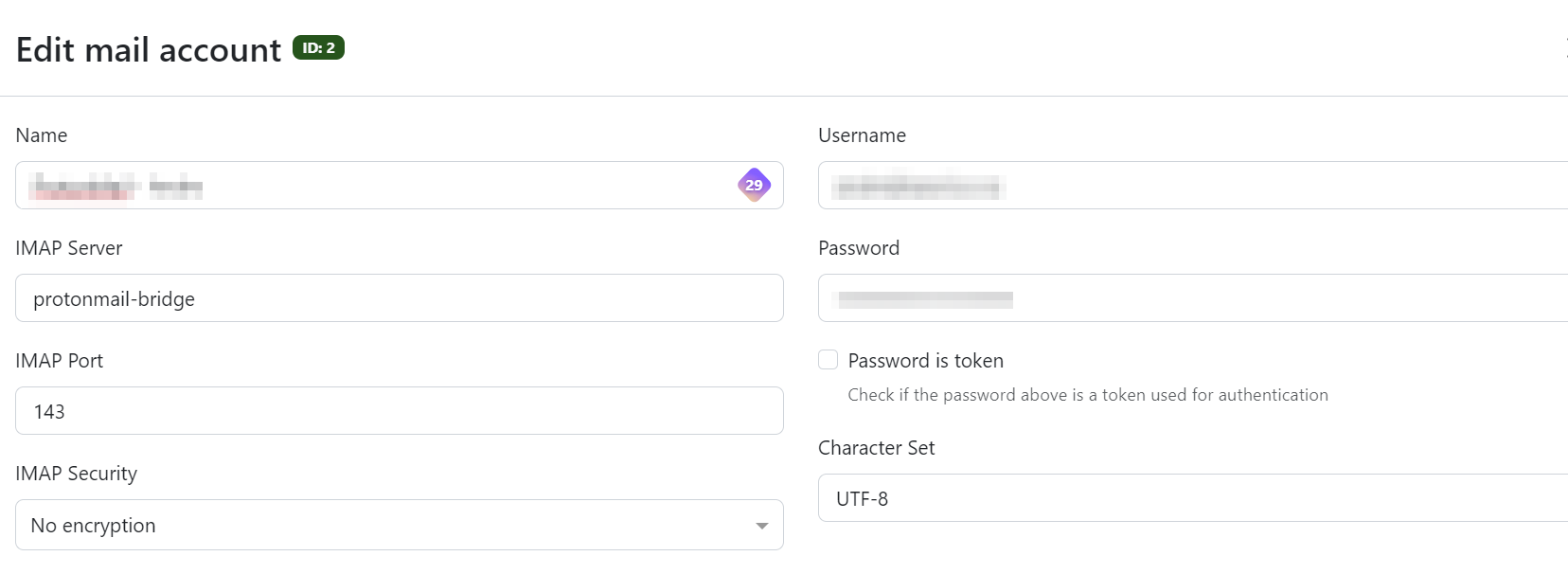
Enter "login" to connect the ProtonMail account. Once complete, type "info" to get the login details that will be used in the Paperless mail interface.
Exit the instance (using control-c if necessary).
Bring paperless up again.
sudo docker compose up -dConfigure and test the mail settings
Your URLS
version: '3.1'

services:

  yourls:
    image: yourls
    restart: always
    ports:
      - 8080:80
    volumes:
      - /home/sysadmin/yourls:/var/www/html
    environment:
      YOURLS_DB_PASS: dbpwd
      YOURLS_SITE: https://192.168.20.40:8080/
      YOURLS_USER: osgadmin
      YOURLS_PASS: yourlspwd

  mysql:
    image: mysql
    restart: always
    environment:
      MYSQL_ROOT_PASSWORD: dbpwd
      MYSQL_DATABASE: yourls
Cloudflare
version: "3.9"
services:

  tunnel:
    container_name: cloudflared-tunnel
    image: cloudflare/cloudflared
    restart: unless-stopped
    command: tunnel run
    environment:
      - TUNNEL_TOKEN=token................
Updating a docker container running on QNAP using SSH
SSH enabled on your QNAP NAS
1. Identify the Container and Image Name
Option A: Using Container Station GUI
-
Open Container Station.
-
Navigate to the Containers tab.
-
Click on the target container to view details.
-
Locate the Image field — this is the image used (e.g.,
linuxserver/nextcloud:latest).
Option B: Using SSH
Copy the container name (e.g., nextcloud) and run:
This returns the image name, e.g.:
2. Back Up Container Volumes (Optional but Recommended)
Check volume mappings:
Back up the volume path if necessary. For example, if a volume is mounted to /share/Container/nextcloud/config, back that up using QNAP File Station or rsync.
3. Pull the Latest Docker Image
Example:
4. Stop and Remove the Old Container
Example:
⚠️ This does not delete the image or volume data.
5. Recreate the Container with Same Settings
Get Existing Settings (Ports, Volumes, Env Vars)
Use:
Note the following:
-
Port mappings
-
Volume mounts
-
Environment variables
Re-run the Container
Example:
Replace volume paths, ports, and environment variables based on what you had before.
6. Verify Everything Works
-
Use:
to confirm the container is running.
-
Check logs:
-
Access the app via web browser or API to confirm it’s working.
7. (Optional) Remove Old Images
List unused images:
Clean up dangling images:
Or remove a specific old image manually:
Bonus: Automatically Extract and Re-run a Container
To automatically generate a docker run command:
Then review or convert the output back into a run command.